> ## Documentation Index
> Fetch the complete documentation index at: https://docs.getmocha.com/llms.txt
> Use this file to discover all available pages before exploring further.
# Analytics
> Understand your app's traffic: visitors, pageviews, sources, top pages, locations, and devices
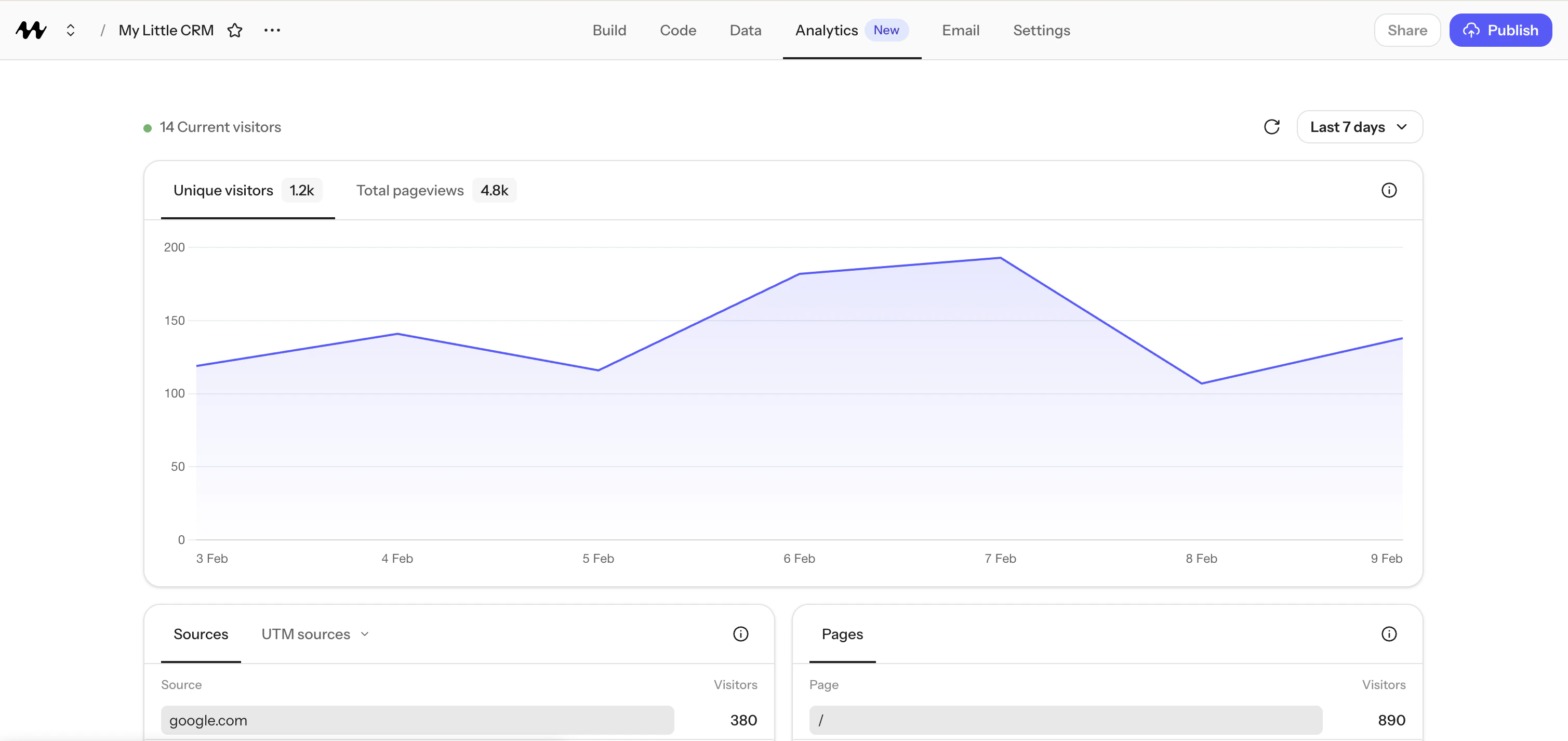
Mocha Analytics helps you understand how people find and use your app.
## Where To Find Analytics
In the Mocha app, click the **Analytics** tab in the top menu.
 ## Availability And Lookback Window
Analytics is available for **published apps** (including apps on a Mocha subdomain, not only custom
domains). It is **not available on the free tier**.
How far back you can view analytics depends on your plan:
| Plan | History you can view |
| ------ | -------------------- |
| Bronze | 15 days |
| Silver | 60 days |
| Gold | 2 years |
Privacy note: Mocha does not use cookies or track visitors across websites. Visitor counts use an
anonymous identifier that resets every day.
## Visitors
**Unique visitors**: The number of people who visited your app during the selected time period. If
someone visits multiple pages in one session, they are still counted as one visitor.
Because the anonymous visitor identifier resets daily, the same person visiting on two different
days will be counted as two unique visitors. Visitors using different devices (for example phone
and laptop) are also counted separately since there is no cross-device tracking.
**Total pageviews**: The total number of pages loaded across all visitors. If one person views 5
pages, that counts as 5 pageviews.
**Current visitors**: The number of people on your app right now (within the last 30 minutes). This
updates in real time regardless of the date range you have selected.
## Sources and Campaigns
**Sources** show where your visitors came from before landing on your app. For example, if someone
clicks a link to your app from Instagram, the source may show `instagram.com`. If someone clicks a
link from Google search results, it may show `google.com`.
**Campaigns** let you attribute traffic to specific marketing links by using UTM parameters. For
example:
```text theme={null}
https://your-app.example/?utm_source=twitter&utm_campaign=launch
```
Mocha supports five UTM tags:
* **Source** (`utm_source`): where the link was posted (e.g. `twitter`, `newsletter`)
* **Medium** (`utm_medium`): the type of channel (e.g. `social`, `email`)
* **Campaign** (`utm_campaign`): the name of your campaign (e.g. `launch`, `summer-sale`)
* **Content** (`utm_content`): differentiate similar links in the same campaign
* **Term** (`utm_term`): identify keywords in paid search campaigns
## Top Pages
**Top pages** show which pages of your app get the most visitors. Each entry shows the page path
(the part of the URL after your domain) and how many unique visitors viewed it.
## Locations
**Locations** show where your visitors are located, broken down by country, region, and city. This
is determined from the visitor's internet connection and is approximate. It does not use GPS or
precise location tracking.
## Devices
Analytics breaks device information down into:
* **Browsers**: Chrome, Safari, Firefox, etc.
* **Operating systems**: Windows, macOS, iOS, Android, etc.
* **Devices**: desktop, mobile, or tablet.
## Availability And Lookback Window
Analytics is available for **published apps** (including apps on a Mocha subdomain, not only custom
domains). It is **not available on the free tier**.
How far back you can view analytics depends on your plan:
| Plan | History you can view |
| ------ | -------------------- |
| Bronze | 15 days |
| Silver | 60 days |
| Gold | 2 years |
Privacy note: Mocha does not use cookies or track visitors across websites. Visitor counts use an
anonymous identifier that resets every day.
## Visitors
**Unique visitors**: The number of people who visited your app during the selected time period. If
someone visits multiple pages in one session, they are still counted as one visitor.
Because the anonymous visitor identifier resets daily, the same person visiting on two different
days will be counted as two unique visitors. Visitors using different devices (for example phone
and laptop) are also counted separately since there is no cross-device tracking.
**Total pageviews**: The total number of pages loaded across all visitors. If one person views 5
pages, that counts as 5 pageviews.
**Current visitors**: The number of people on your app right now (within the last 30 minutes). This
updates in real time regardless of the date range you have selected.
## Sources and Campaigns
**Sources** show where your visitors came from before landing on your app. For example, if someone
clicks a link to your app from Instagram, the source may show `instagram.com`. If someone clicks a
link from Google search results, it may show `google.com`.
**Campaigns** let you attribute traffic to specific marketing links by using UTM parameters. For
example:
```text theme={null}
https://your-app.example/?utm_source=twitter&utm_campaign=launch
```
Mocha supports five UTM tags:
* **Source** (`utm_source`): where the link was posted (e.g. `twitter`, `newsletter`)
* **Medium** (`utm_medium`): the type of channel (e.g. `social`, `email`)
* **Campaign** (`utm_campaign`): the name of your campaign (e.g. `launch`, `summer-sale`)
* **Content** (`utm_content`): differentiate similar links in the same campaign
* **Term** (`utm_term`): identify keywords in paid search campaigns
## Top Pages
**Top pages** show which pages of your app get the most visitors. Each entry shows the page path
(the part of the URL after your domain) and how many unique visitors viewed it.
## Locations
**Locations** show where your visitors are located, broken down by country, region, and city. This
is determined from the visitor's internet connection and is approximate. It does not use GPS or
precise location tracking.
## Devices
Analytics breaks device information down into:
* **Browsers**: Chrome, Safari, Firefox, etc.
* **Operating systems**: Windows, macOS, iOS, Android, etc.
* **Devices**: desktop, mobile, or tablet.