> ## Documentation Index
> Fetch the complete documentation index at: https://docs.getmocha.com/llms.txt
> Use this file to discover all available pages before exploring further.
# Backend & APIs
> Mocha writes backend code for you, calls external APIs, and manages secrets
Mocha is "full‑stack", which means you can build useful software, not just pretty mockups. Beyond the visual pages, Mocha can run logic for you in the background—things like saving form submissions, talking to other services (APIs), and powering features your business needs.
Backend code runs in a scalable serverless runtime. It can handle a lot of traffic and scale up and down as needed.
## Quick start
This section won't be long, because mostly Mocha just does the work for you.
Say what you need in plain English. For example: “I want users to be able to subscribe to my app by giving their email address.” The AI will create the necessary backend logic.
Don't give Mocha technical details like "use postgresql". This won't work well, Mocha is highly opinionated on how to build things technically, and you should describe your desired outcomes for the product, instead of the technical details.
Use the in‑app preview to test the feature. You can see results and logs right away, then deploy when you’re ready.
That's it! Congratulations on building a full-stack feature that uses your own backend code.
## Managing secrets
Some features require private keys to talk to other services (often called "APIs"). These private keys are called secrets.
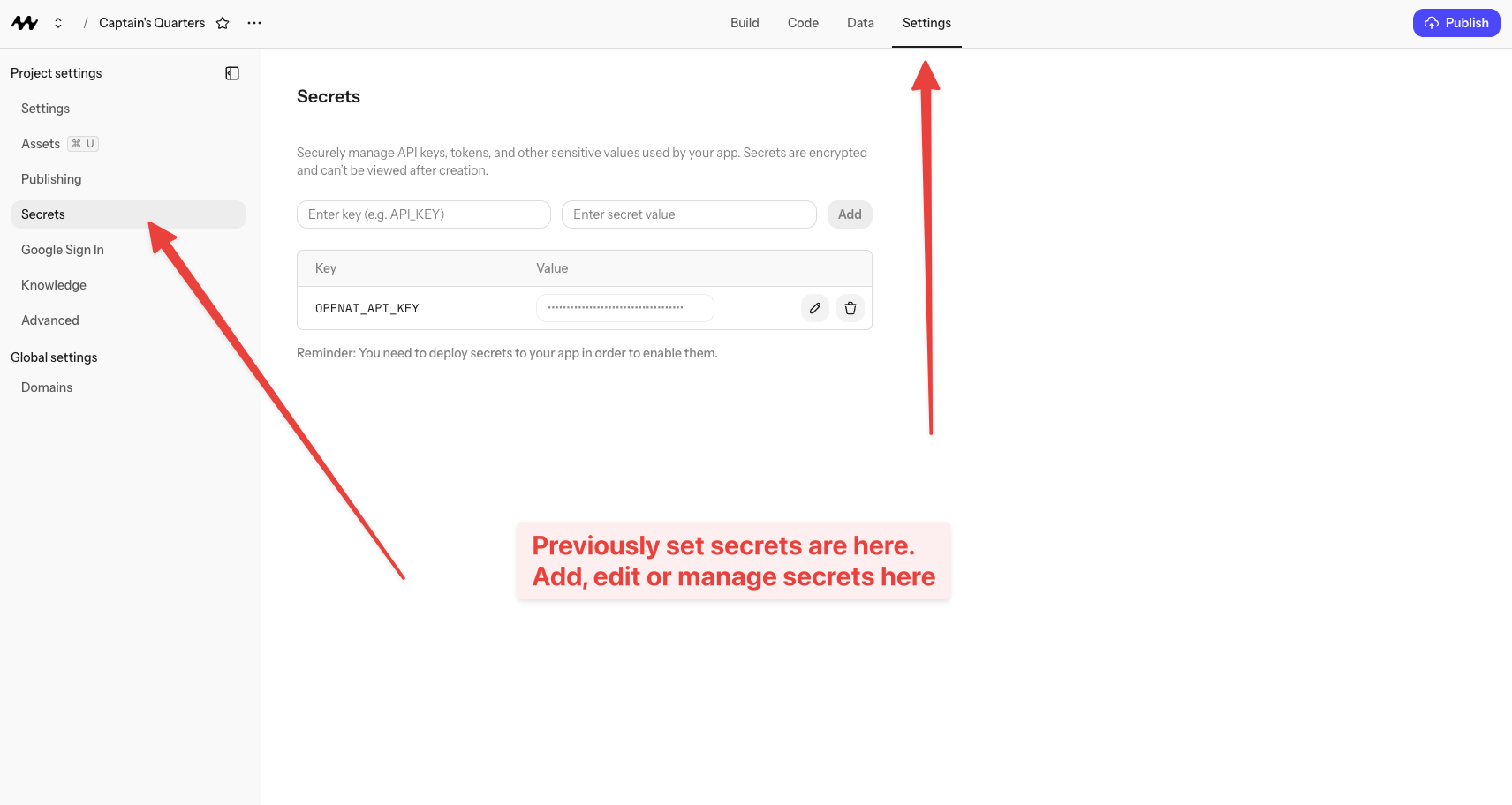 A secret is a private value your app uses to connect to another service. It might be an API key, access token, or signing key.
* Weather API key (for example, an OpenWeather key) to show today's forecast in your app
* OpenAI API key to generate images or summaries for your content
If your feature needs a secret, the AI will prompt you to add one and will wire it up correctly. You just provide the key once.
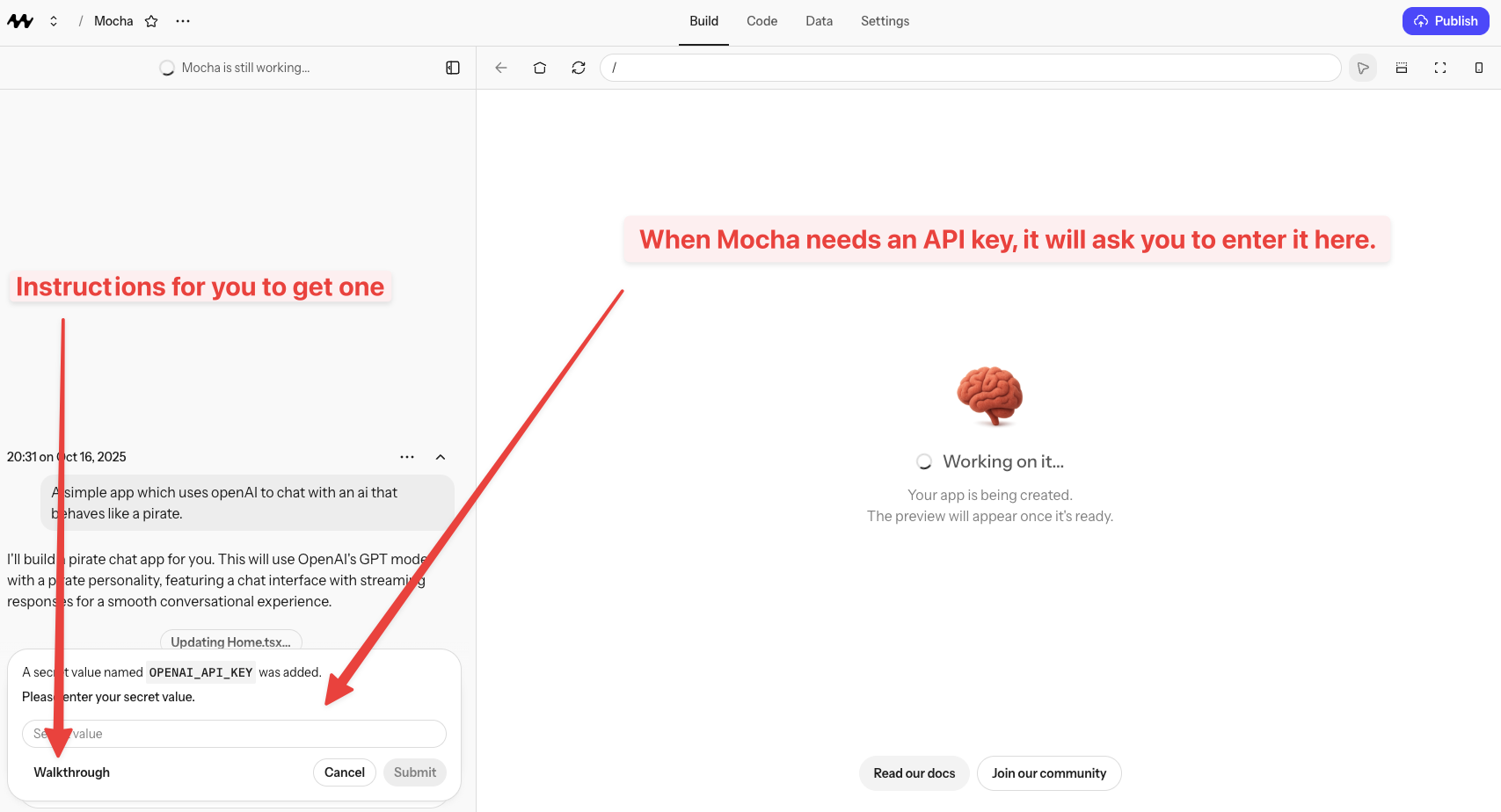
Usually, Mocha will ask you to add a secret to your project as part of the conversation, and will even show you how to get the secret from the provider, just follow the prompts.
Avoid pasting the secrets directly into the chat input. Instead, paste them into the secure forms that appear in the chat inyour pages or commit history. Store them as secrets instead.
A secret is a private value your app uses to connect to another service. It might be an API key, access token, or signing key.
* Weather API key (for example, an OpenWeather key) to show today's forecast in your app
* OpenAI API key to generate images or summaries for your content
If your feature needs a secret, the AI will prompt you to add one and will wire it up correctly. You just provide the key once.
Usually, Mocha will ask you to add a secret to your project as part of the conversation, and will even show you how to get the secret from the provider, just follow the prompts.
Avoid pasting the secrets directly into the chat input. Instead, paste them into the secure forms that appear in the chat inyour pages or commit history. Store them as secrets instead.
 ## Common patterns
Want weather data, maps, email, or payments? Save your API key as a secret and ask the AI to connect the service. Example: “Show today’s weather in San Francisco using my OpenWeather key.”
Add forms to your pages to collect emails, feedback, or orders. The AI saves submissions and can store them in your database.
Some services can notify your app when something happens (often called webhooks). Ask the AI to set this up and it will handle the details.
***
## Payments & Monetization
Want to accept payments or sell products through your Mocha app? Here's what you need to know.
Mocha doesn't have a built-in payment system. To accept payments, you'll need to integrate with an external payment provider like Stripe.
Yes, it's possible to integrate Stripe with your Mocha app. However, we don't have an official step-by-step guide yet—this is an area we're still developing better support for.
**Our recommendation:** Start simple. For most use cases, you don't need complex payment integration:
* **Stripe Payment Links** - Create payment links in Stripe and add them as buttons on your site. No coding required.
* **Stripe Checkout** - Redirect customers to Stripe's hosted checkout page for a more seamless experience.
These simple approaches work for selling products, services, subscriptions, and donations without needing to build custom payment flows.
No, Mocha doesn't have a built-in payment processor. You'll need to use an external service like Stripe or PayPal to accept payments.
The good news is that these services are designed to be easy to integrate, especially if you use their hosted solutions like Payment Links.
The simplest approach:
1. **Create a Stripe account** at stripe.com
2. **Create Payment Links** in Stripe for each product you want to sell
3. **Add buy buttons** to your Mocha app that link to your Stripe Payment Links
This approach lets you start selling quickly without complex integration. Stripe handles the payment form, security, and receipts.
Similar to Stripe, you can integrate PayPal by using their hosted checkout options and linking to them from your Mocha app. PayPal also offers simple button generators that work well for basic payment needs.
Stripe supports recurring payments and subscriptions through their Payment Links feature. You can create subscription products in Stripe and link to them from your Mocha app.
For more complex subscription management (like customer portals, usage tracking, etc.), you may need to build more custom integration.
Starting simple with Payment Links is a great way to validate your business idea before investing time in more complex payment integrations. You can always upgrade to a more sophisticated setup later.
## Common patterns
Want weather data, maps, email, or payments? Save your API key as a secret and ask the AI to connect the service. Example: “Show today’s weather in San Francisco using my OpenWeather key.”
Add forms to your pages to collect emails, feedback, or orders. The AI saves submissions and can store them in your database.
Some services can notify your app when something happens (often called webhooks). Ask the AI to set this up and it will handle the details.
***
## Payments & Monetization
Want to accept payments or sell products through your Mocha app? Here's what you need to know.
Mocha doesn't have a built-in payment system. To accept payments, you'll need to integrate with an external payment provider like Stripe.
Yes, it's possible to integrate Stripe with your Mocha app. However, we don't have an official step-by-step guide yet—this is an area we're still developing better support for.
**Our recommendation:** Start simple. For most use cases, you don't need complex payment integration:
* **Stripe Payment Links** - Create payment links in Stripe and add them as buttons on your site. No coding required.
* **Stripe Checkout** - Redirect customers to Stripe's hosted checkout page for a more seamless experience.
These simple approaches work for selling products, services, subscriptions, and donations without needing to build custom payment flows.
No, Mocha doesn't have a built-in payment processor. You'll need to use an external service like Stripe or PayPal to accept payments.
The good news is that these services are designed to be easy to integrate, especially if you use their hosted solutions like Payment Links.
The simplest approach:
1. **Create a Stripe account** at stripe.com
2. **Create Payment Links** in Stripe for each product you want to sell
3. **Add buy buttons** to your Mocha app that link to your Stripe Payment Links
This approach lets you start selling quickly without complex integration. Stripe handles the payment form, security, and receipts.
Similar to Stripe, you can integrate PayPal by using their hosted checkout options and linking to them from your Mocha app. PayPal also offers simple button generators that work well for basic payment needs.
Stripe supports recurring payments and subscriptions through their Payment Links feature. You can create subscription products in Stripe and link to them from your Mocha app.
For more complex subscription management (like customer portals, usage tracking, etc.), you may need to build more custom integration.
Starting simple with Payment Links is a great way to validate your business idea before investing time in more complex payment integrations. You can always upgrade to a more sophisticated setup later.