> ## Documentation Index
> Fetch the complete documentation index at: https://docs.getmocha.com/llms.txt
> Use this file to discover all available pages before exploring further.
# Version History
> Learn how to manage, view, and restore previous versions of your Mocha projects
# Managing Version History
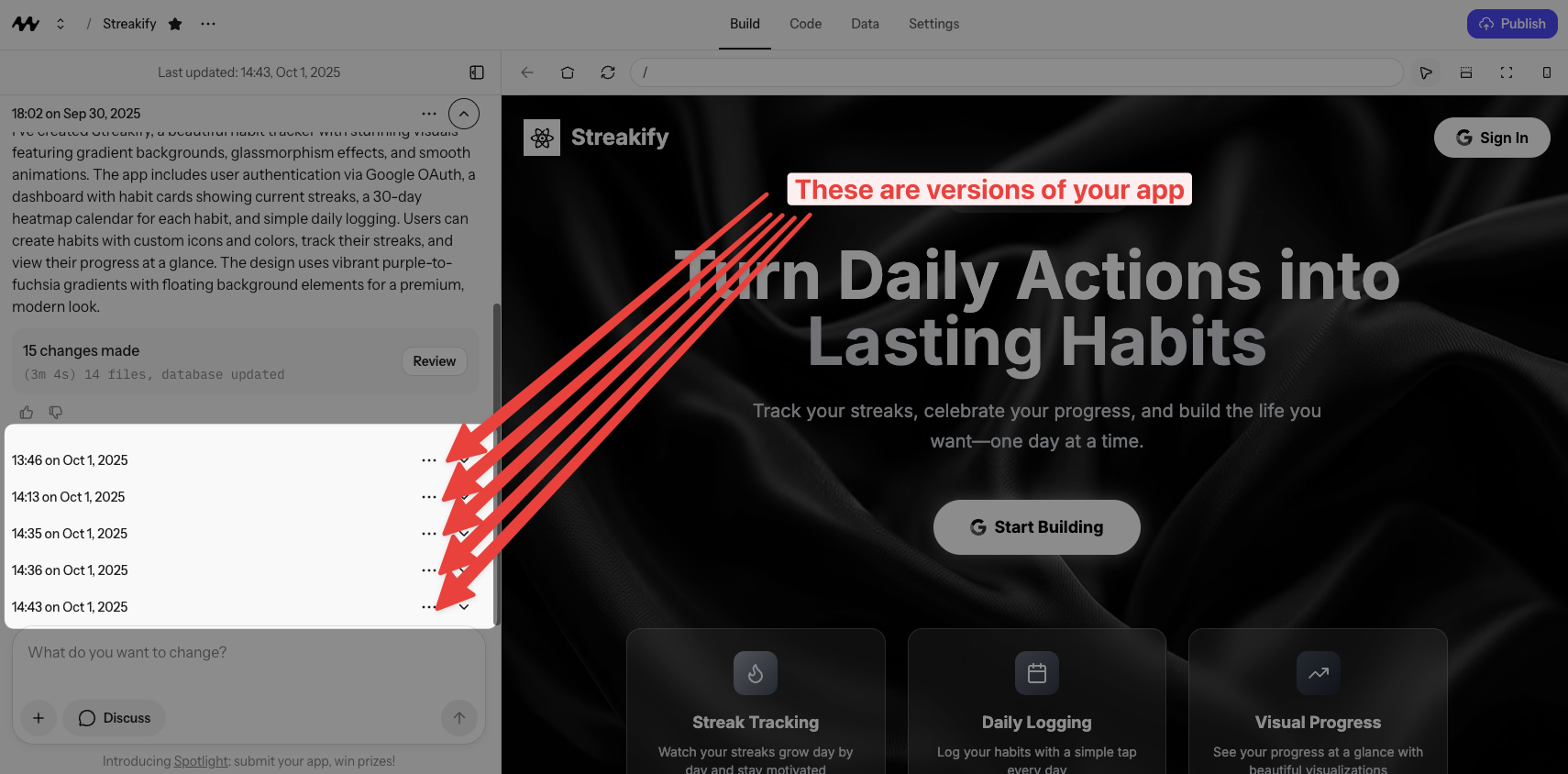
Every prompt you send in Mocha creates a new version of your project. This version history allows you to track changes, view previous states, and restore to earlier versions if needed.
## Understanding Versions
Each version represents a snapshot of your project at a specific point in time. You can:
* View previous versions to see how your project looked
* Restore to an earlier version if needed
* Duplicate versions to work on multiple variations
 ## Viewing Previous Versions
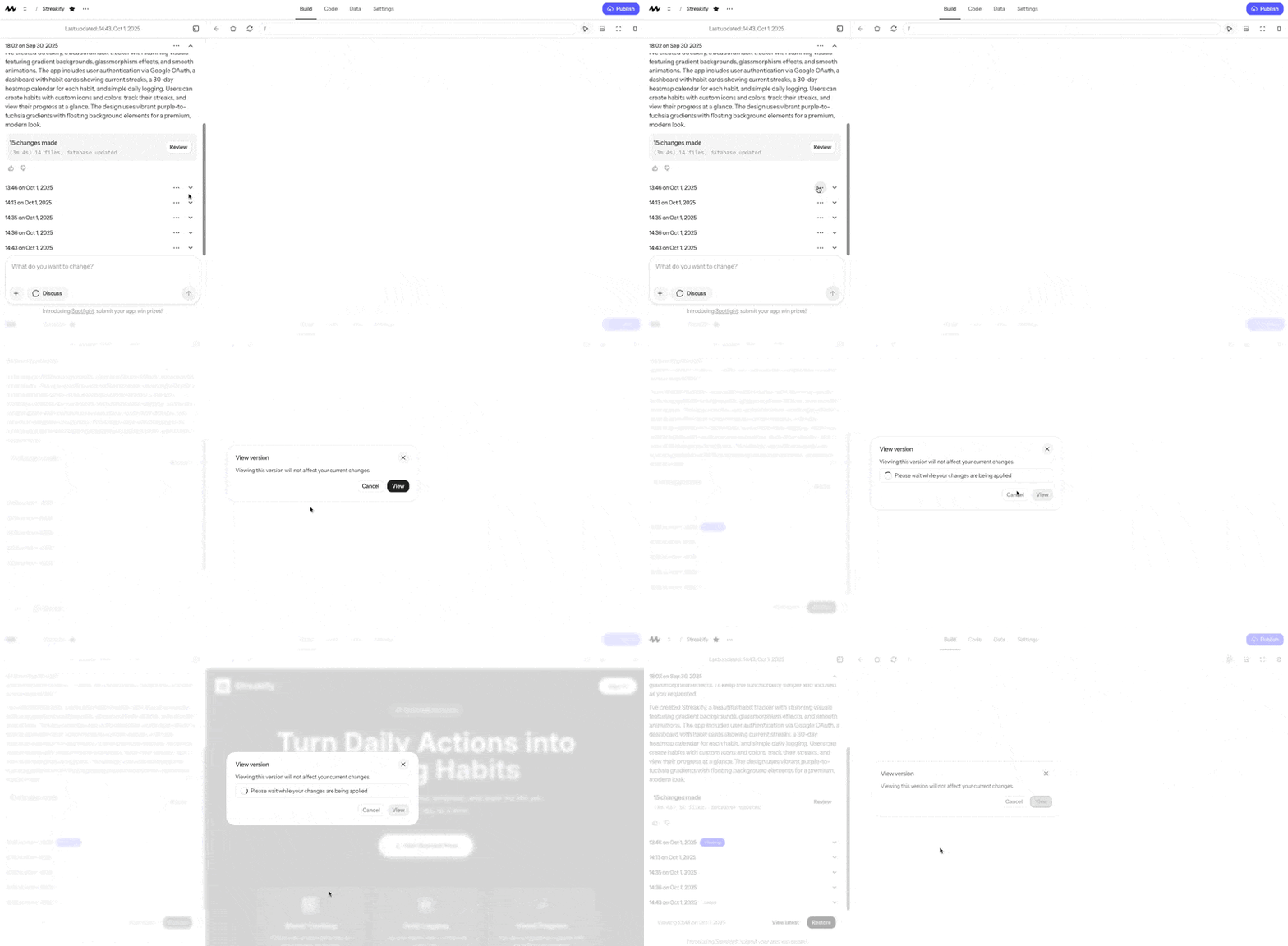
The "View" option lets you explore previous versions without making any changes. This is perfect for:
* Checking how your project looked at a specific point
* Taking screenshots of previous designs
* Comparing different iterations
## Viewing Previous Versions
The "View" option lets you explore previous versions without making any changes. This is perfect for:
* Checking how your project looked at a specific point
* Taking screenshots of previous designs
* Comparing different iterations
 ## Restoring Versions
When you restore to a previous version:
* Your project returns to that exact state
* All versions created after that point are removed
* You can continue working from that restored point
## Restoring Versions
When you restore to a previous version:
* Your project returns to that exact state
* All versions created after that point are removed
* You can continue working from that restored point
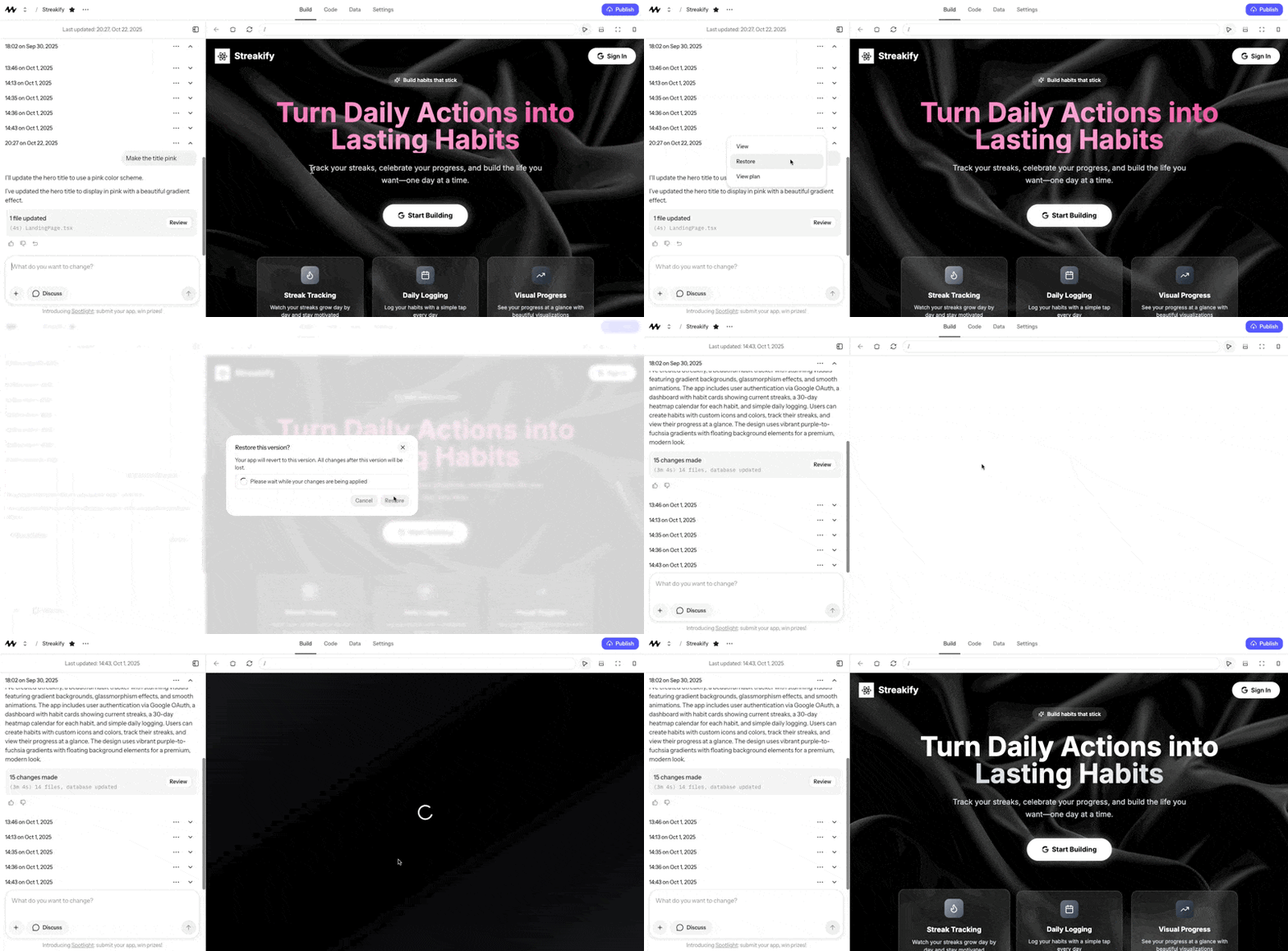 Restoring a version is permanent and cannot be undone. All versions created after the restored point will be deleted.
## Working with Multiple Versions
If you want to keep both the current and previous versions:
1. View the version you're interested in
2. Use the "Duplicate" feature to create a new project
3. Work on both versions independently
Restoring a version is permanent and cannot be undone. All versions created after the restored point will be deleted.
## Working with Multiple Versions
If you want to keep both the current and previous versions:
1. View the version you're interested in
2. Use the "Duplicate" feature to create a new project
3. Work on both versions independently
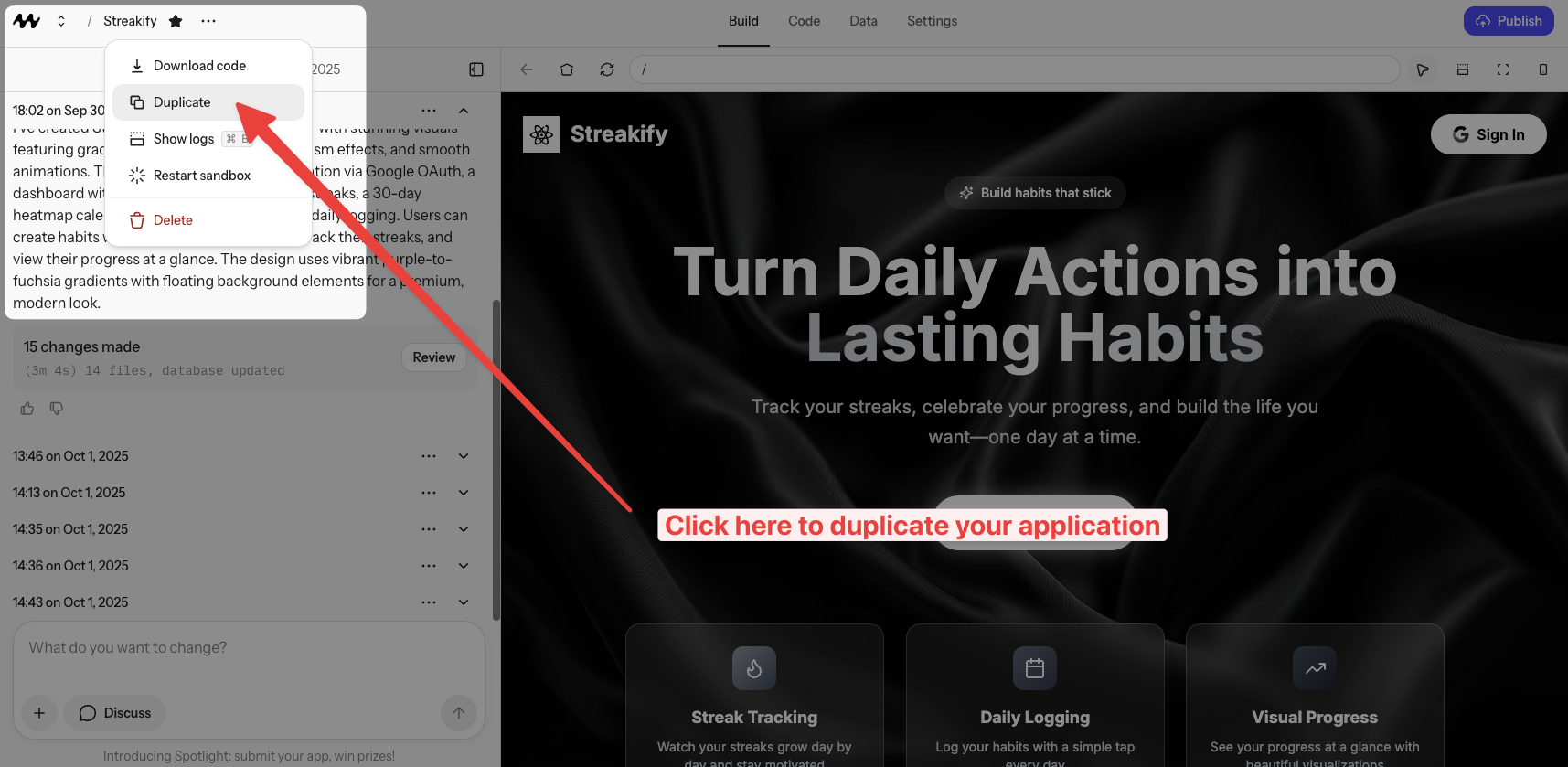 Use version duplication when you want to explore different design directions or maintain multiple variations of your project.
## Best Practices
Make incremental, atomic changes so that you have nice, clean version history
Always view a version before restoring to ensure it's the right one
When in doubt, duplicate instead of restoring to preserve your work
Use version duplication when you want to explore different design directions or maintain multiple variations of your project.
## Best Practices
Make incremental, atomic changes so that you have nice, clean version history
Always view a version before restoring to ensure it's the right one
When in doubt, duplicate instead of restoring to preserve your work