> ## Documentation Index
> Fetch the complete documentation index at: https://docs.getmocha.com/llms.txt
> Use this file to discover all available pages before exploring further.
# Getting Started with Mocha
> Start your journey with Mocha and create your first AI-powered website
**Mocha is shutting down on August 1, 2026.** Read the [shutdown announcement](https://getmocha.com/blog/mocha-shutdown) to learn how to migrate or export your apps.
Welcome to Mocha! This guide will walk you through creating and customizing your first AI-powered website. Let's get started!
## Create Your First Project
Head over to [getmocha.com](https://getmocha.com) and create your free account. The signup process is quick and straightforward.
Once registered, you can create your first project. Simply enter a prompt describing what you want to build, and Mocha's AI will handle the rest.
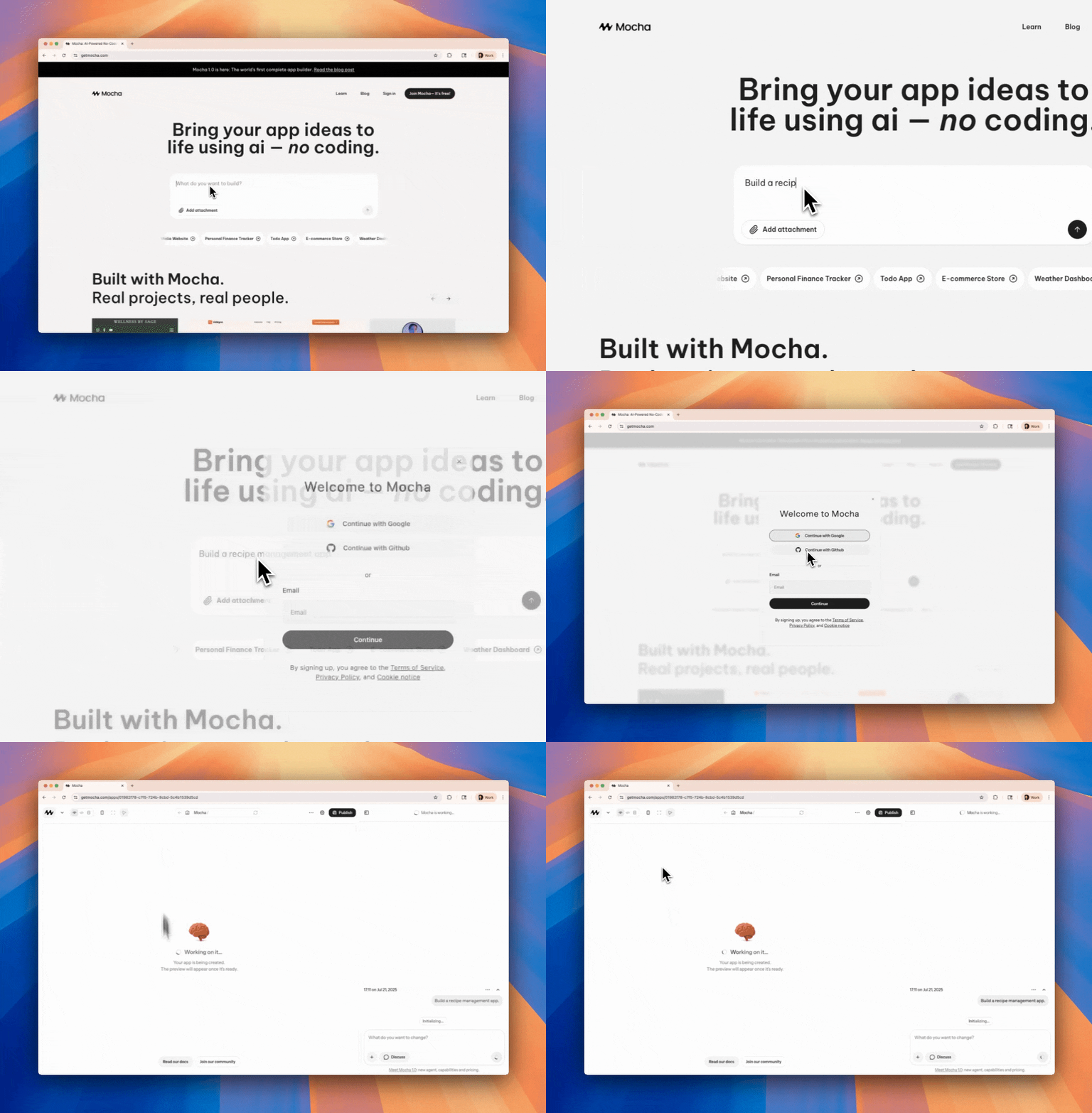 Hang tight! It takes a couple of minutes for the AI to build the first version of your site. The AI is carefully crafting your website's code, design, and content.
 ## Customize Your App
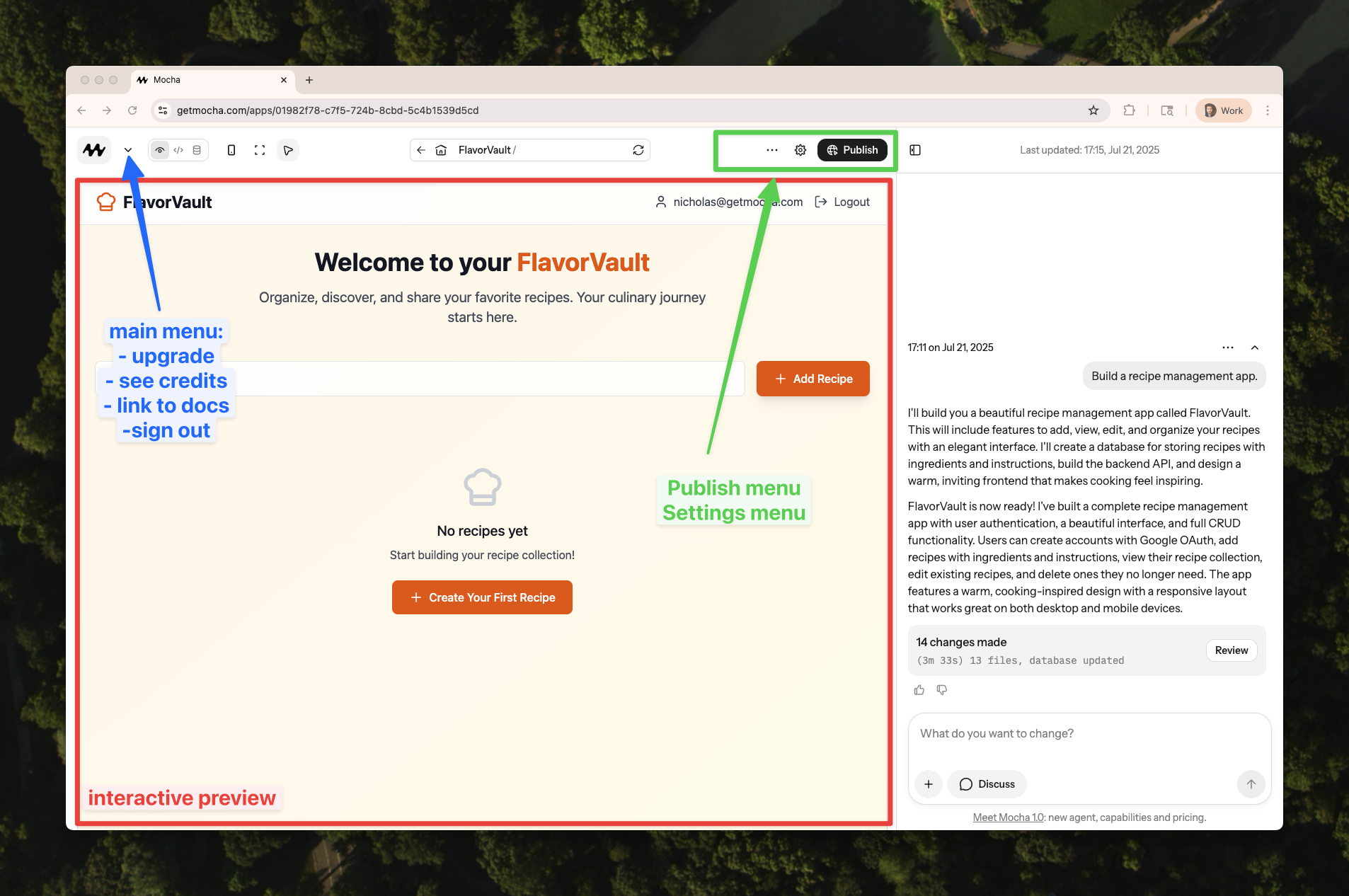
Below is an overview of the Mocha interface. The main menu on the top left allows you to see your user, number of messages remaining, billing status, and more.
On the right side, you can see the chat interface, where you can ask the AI to make changes to your website.
In the center, you can see the website preview, where you can see and interact with the current state of your website.
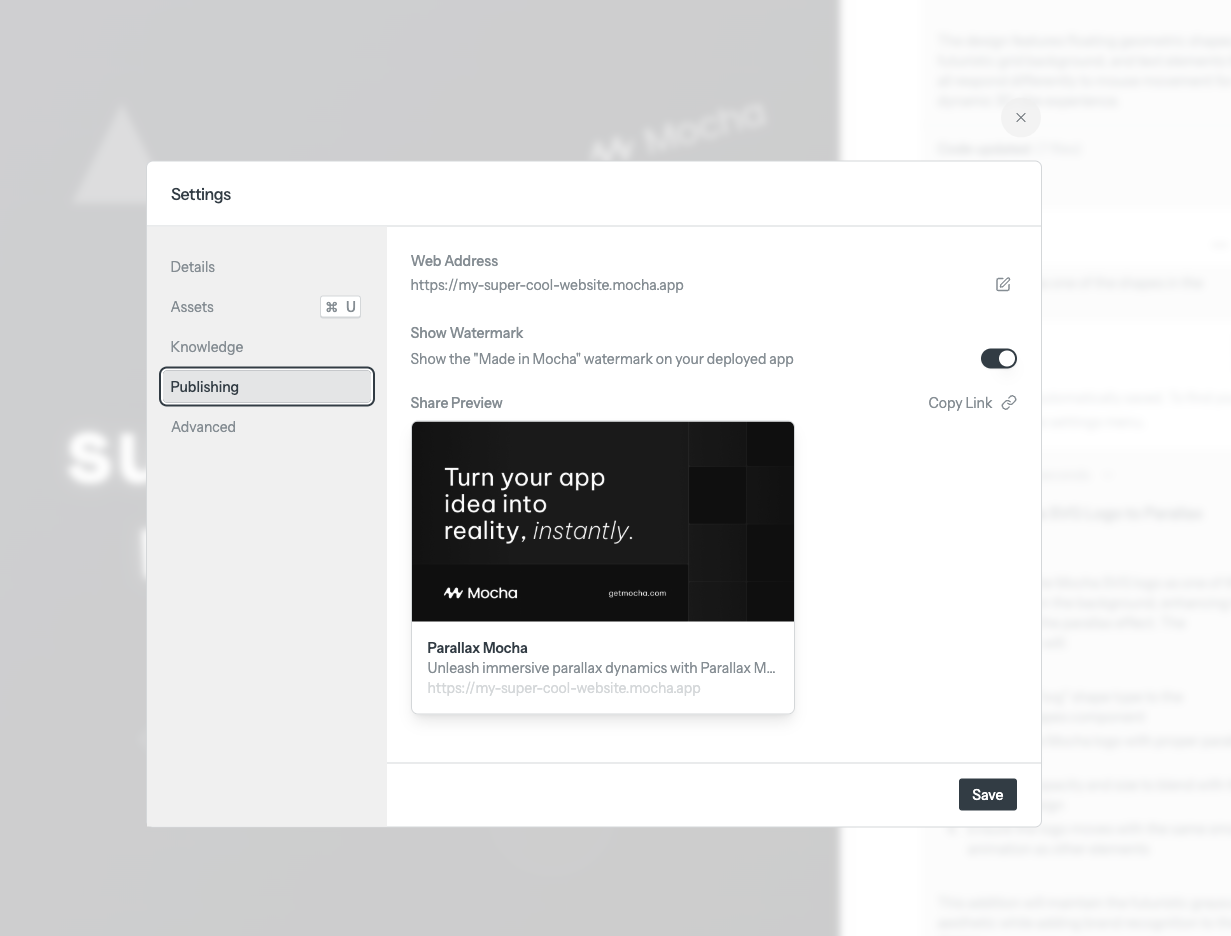
In the top nav, you can find the page you're currently navigating on, and access to the project settings where you can change the project name, description, custom knowledge, and sharing settings.
## Customize Your App
Below is an overview of the Mocha interface. The main menu on the top left allows you to see your user, number of messages remaining, billing status, and more.
On the right side, you can see the chat interface, where you can ask the AI to make changes to your website.
In the center, you can see the website preview, where you can see and interact with the current state of your website.
In the top nav, you can find the page you're currently navigating on, and access to the project settings where you can change the project name, description, custom knowledge, and sharing settings.
 Use the chat panel on the right to make changes to your website. Ask for new features, design updates, or any modifications you'd like to make.
Attach images in the chat to show the AI exactly what you want. For example:
* "Make it look like this" (with a screenshot)
* "Use this as the background"
* "Add this image to the hero section"
## Build Full-Stack Features
Write backend endpoints and call external APIs. Manage secrets safely.
Add sign‑in with Google and protect pages and actions.
Create tables, view data, and understand Dev vs Prod databases.
## Interactive Features
Your website is fully interactive! You can:
* Test all features directly in the preview pane
* Maximize the preview for a full-screen experience
* Interact with buttons, forms, and other elements
Don't panic if you encounter errors!
You have several options to resolve issues:
* Use the "Fix with AI" button
* Paste error messages in the chat
* Restore previous working versions
* Check our detailed error handling guide
## Publishing Your Website
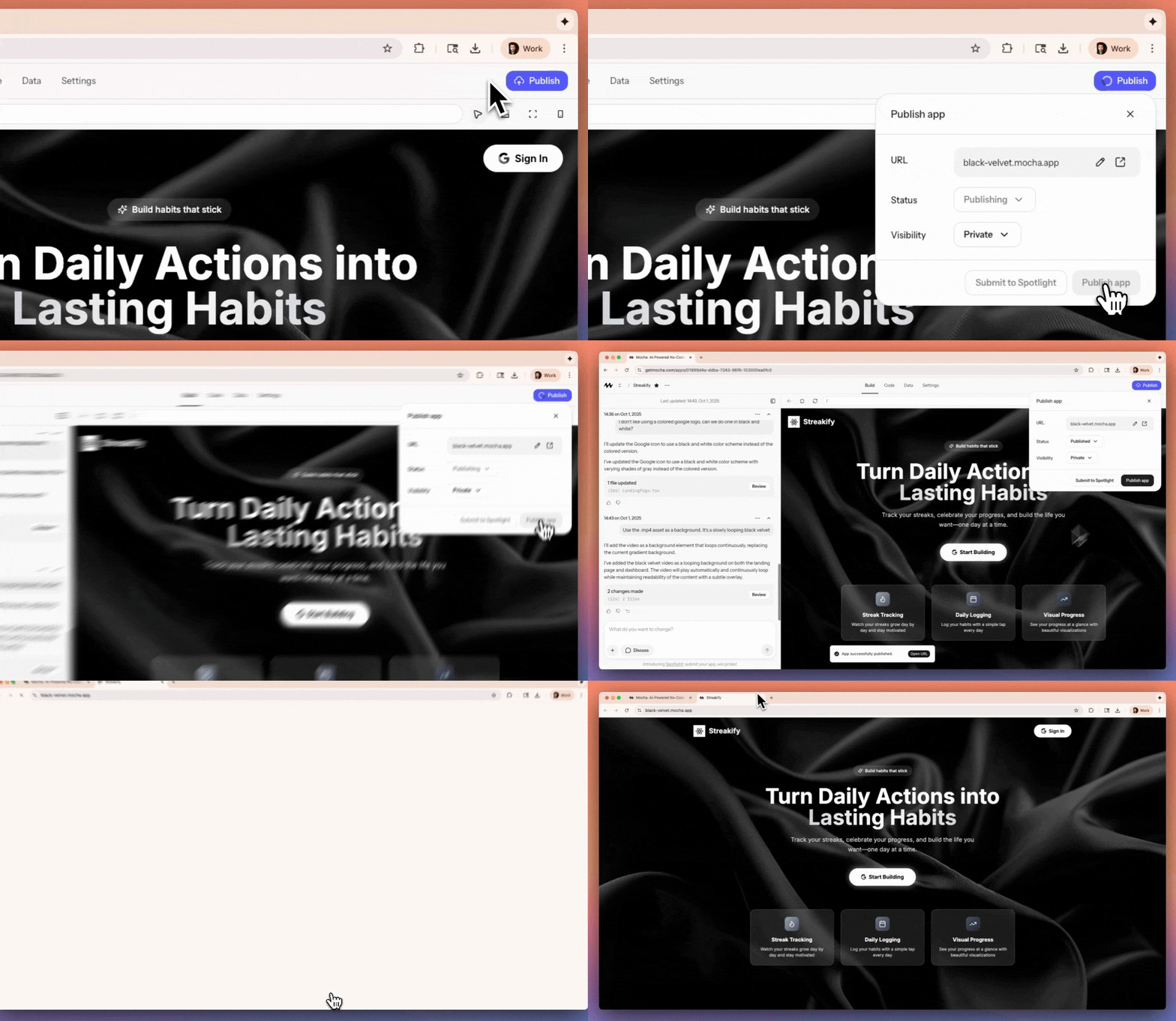
Publish your website to the web with a single click. Your site will be available at a unique mocha.app subdomain.
Available on Pro tiers (Bronze, Silver, Gold)
Upgrade to a Pro tier to:
* Use custom subdomains (e.g., my-super-app.mocha.app)
* Connect your own custom domain (coming very soon)
That's it! Your website is live and ready to share. Send the link to friends, post it on social media, or add it to your portfolio.
Use the chat panel on the right to make changes to your website. Ask for new features, design updates, or any modifications you'd like to make.
Attach images in the chat to show the AI exactly what you want. For example:
* "Make it look like this" (with a screenshot)
* "Use this as the background"
* "Add this image to the hero section"
## Build Full-Stack Features
Write backend endpoints and call external APIs. Manage secrets safely.
Add sign‑in with Google and protect pages and actions.
Create tables, view data, and understand Dev vs Prod databases.
## Interactive Features
Your website is fully interactive! You can:
* Test all features directly in the preview pane
* Maximize the preview for a full-screen experience
* Interact with buttons, forms, and other elements
Don't panic if you encounter errors!
You have several options to resolve issues:
* Use the "Fix with AI" button
* Paste error messages in the chat
* Restore previous working versions
* Check our detailed error handling guide
## Publishing Your Website
Publish your website to the web with a single click. Your site will be available at a unique mocha.app subdomain.
Available on Pro tiers (Bronze, Silver, Gold)
Upgrade to a Pro tier to:
* Use custom subdomains (e.g., my-super-app.mocha.app)
* Connect your own custom domain (coming very soon)
That's it! Your website is live and ready to share. Send the link to friends, post it on social media, or add it to your portfolio.
 ## Advanced Features
Customize your project through the settings panel:
* Change project name and description
* Add custom knowledge
* Configure sharing settings
Create additional pages by simply asking the AI:
* "Add a profile page"
* "Create a pricing page"
* "Add a contact form page"
## Social Media Integration
Make your website stand out on social media!
To update your website's social media preview:
1. Upload your desired image
2. Ask Mocha: "Use this as the sharing preview when sharing the link on social media"
## Advanced Features
Customize your project through the settings panel:
* Change project name and description
* Add custom knowledge
* Configure sharing settings
Create additional pages by simply asking the AI:
* "Add a profile page"
* "Create a pricing page"
* "Add a contact form page"
## Social Media Integration
Make your website stand out on social media!
To update your website's social media preview:
1. Upload your desired image
2. Ask Mocha: "Use this as the sharing preview when sharing the link on social media"
 ## Next Steps
* Try different AI prompts
* Experiment with image uploads
* Test the live preview
* Visit our [Community Discord](https://discord.gg/shDEGBSe2d)
* Check out our [YouTube tutorials](https://www.youtube.com/@buildwithmocha)
* Contact [support@getmocha.com](mailto:support@getmocha.com)
## Next Steps
* Try different AI prompts
* Experiment with image uploads
* Test the live preview
* Visit our [Community Discord](https://discord.gg/shDEGBSe2d)
* Check out our [YouTube tutorials](https://www.youtube.com/@buildwithmocha)
* Contact [support@getmocha.com](mailto:support@getmocha.com)