> ## Documentation Index
> Fetch the complete documentation index at: https://docs.getmocha.com/llms.txt
> Use this file to discover all available pages before exploring further.

# Scraping Data

> How to curate data from online sources using Firecrawl's web crawling services

In this how-to guide, we are going to step through the process of setting up a Mocha app that has web crawling capabilities for you to scrape data from the web and take actions based on those web crawls.

This is a high leverage piece of functionality that can greatly increase the utility of your app. Using Firecrawl, we're going to set up a small pragmatic app that tracks the prices of products found online at stores like Amazon, Walmart, Target, etc.

<div className="flex justify-center bg-white p-10">
  <img src="https://mintcdn.com/mocha-47857bf6/egI_EACg1Hy7HJqC/images/firecrawl-wordmark.png?fit=max&auto=format&n=egI_EACg1Hy7HJqC&q=85&s=c28970e77b30618a3aad77c924653f1c" alt="Firecrawl" width="2048" height="477" data-path="images/firecrawl-wordmark.png" />
</div>

## What is Firecrawl

Firecrawl is a powerful web scraping service that turns websites into LLM-ready data. It's an open-source platform designed to help developers extract clean, structured data from any website, including JavaScript-heavy and protected pages.

Firecrawl provides several core capabilities:

* **Scrape**: Extract data from individual web pages in formats like Markdown, JSON, or screenshots
* **Crawl**: Automatically discover and scrape all pages on a website
* **Search**: Search the web and get full content from results
* **Map**: Get a comprehensive view of a website's structure

Built with developers in mind, Firecrawl is fast, reliable, and handles the complexities of modern web scraping—no proxy management or browser automation needed. It covers 96% of the web and delivers results quickly, making it perfect for powering AI applications and real-time data needs.

For more information, visit [firecrawl.dev](https://www.firecrawl.dev/).

## Starting with the Right Prompt

The initial prompt you give Mocha is crucial for getting your project started on the right track. When building an app that uses web scraping, you need to be specific about:

* **What data you want to collect**: Clearly describe what information you need from websites
* **How the data should be used**: Explain how the scraped data fits into your app's functionality
* **Key features**: List the main features you want, including any data storage or display requirements
* **Technical requirements**: Mention any specific services or tools you want to use (like Firecrawl)

Here's the example prompt used to build the competitor price tracker app:

```
Build me a competitor price tracker app.

I want to be able to add products I'm interested in tracking by pasting URLs from different shopping websites (Amazon, Walmart, Target, etc.). The app should scrape the current price from each URL and store it.

Features needed:
- Add a product by pasting a URL and giving it a name
- Display a list of all my tracked products with their current prices
- Show price history over time (when did the price change?)
- Highlight when a price drops below a threshold I set
- Ability to manually refresh prices or have them update on a schedule

Use FireCrawl for the web scraping. Keep the UI clean and simple — I want to see my products and prices at a glance.
```

Notice how this prompt includes:

* A clear description of the app's purpose
* Specific features broken down into bullet points
* Technical requirements (Firecrawl)
* Design preferences (clean and simple UI)

This level of detail helps Mocha understand exactly what you're building and sets a solid foundation for the rest of the development process.

This example will show you how to get the web crawling technology working and how to debug the outputs of that scrape so that the data is what you want and can be used for your app in its intended way.

<div className="flex justify-center">
  <img src="https://mintcdn.com/mocha-47857bf6/egI_EACg1Hy7HJqC/images/firecrawl-walkthrough.png?fit=max&auto=format&n=egI_EACg1Hy7HJqC&q=85&s=b7e3263facca57b01af32c67f438ff72" alt="Firecrawl" width="3508" height="2210" data-path="images/firecrawl-walkthrough.png" />
</div>

## Setting up the Firecrawl API Key

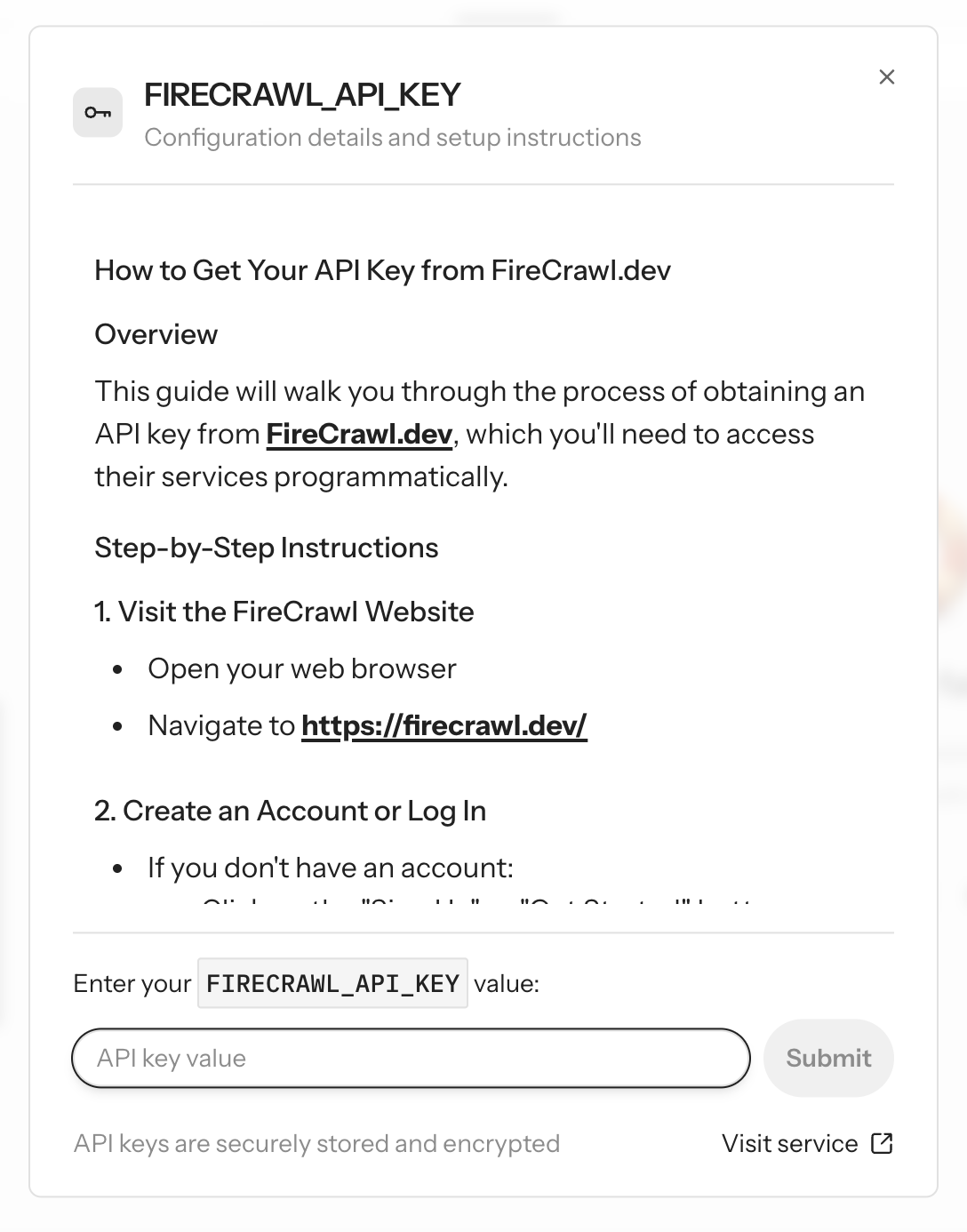
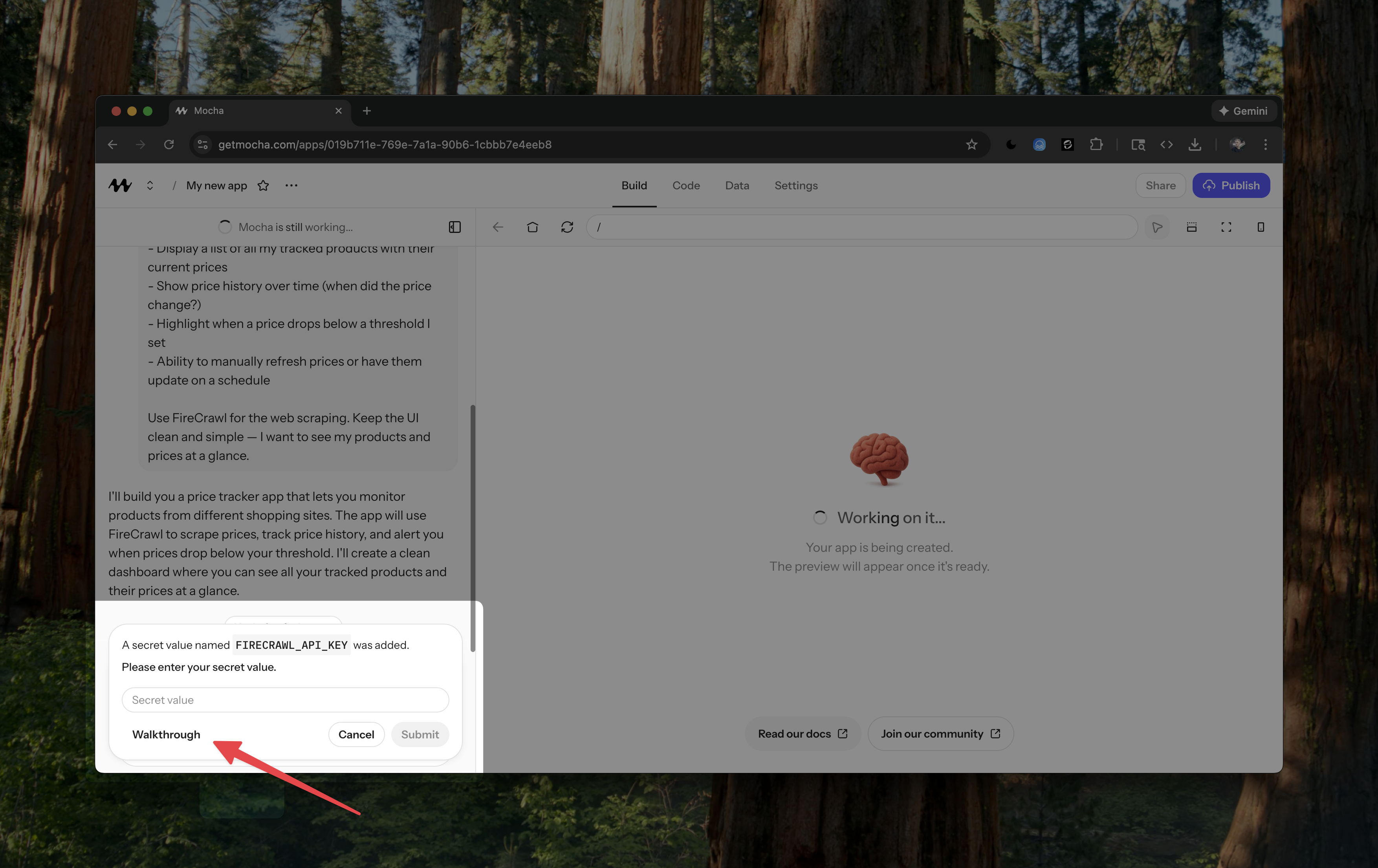
During the build, you should be able to see a prompt to add a secret for the Firecrawl API Key. If you need a walkthrough for how to add this key, click the walkthrough button and follow the instructions.

<div className="flex justify-center">
  <img src="https://mintcdn.com/mocha-47857bf6/egI_EACg1Hy7HJqC/images/firecrawl-modal.png?fit=max&auto=format&n=egI_EACg1Hy7HJqC&q=85&s=50dfc5781f99c5a1a8470f166021af66" alt="Firecrawl" width="1088" height="1386" data-path="images/firecrawl-modal.png" />
</div>

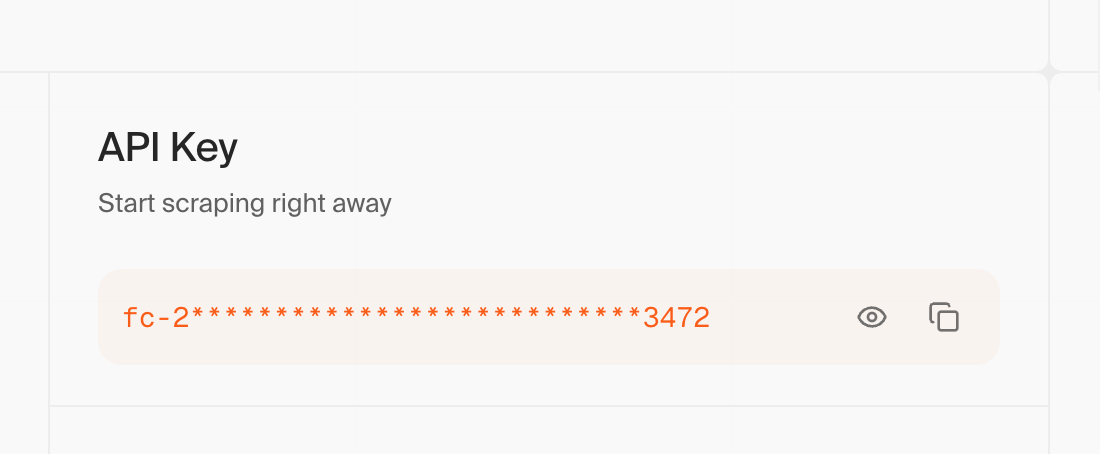
By following the steps in the window that opens, you will be able to find your API key after logging in when you arrive at the Firecrawl dashboard.

<div className="flex justify-center">
  <img src="https://mintcdn.com/mocha-47857bf6/egI_EACg1Hy7HJqC/images/firecrawl-api-key.png?fit=max&auto=format&n=egI_EACg1Hy7HJqC&q=85&s=d5e8f942e42f6eef74b30505a666a0ca" alt="Firecrawl" width="1100" height="454" data-path="images/firecrawl-api-key.png" />
</div>

Copy and paste this API key into the secret field in the Mocha app.

Once you've set up the Firecrawl API key, the app will be able to use it to fetch web data from different addresses that you provide to the app.

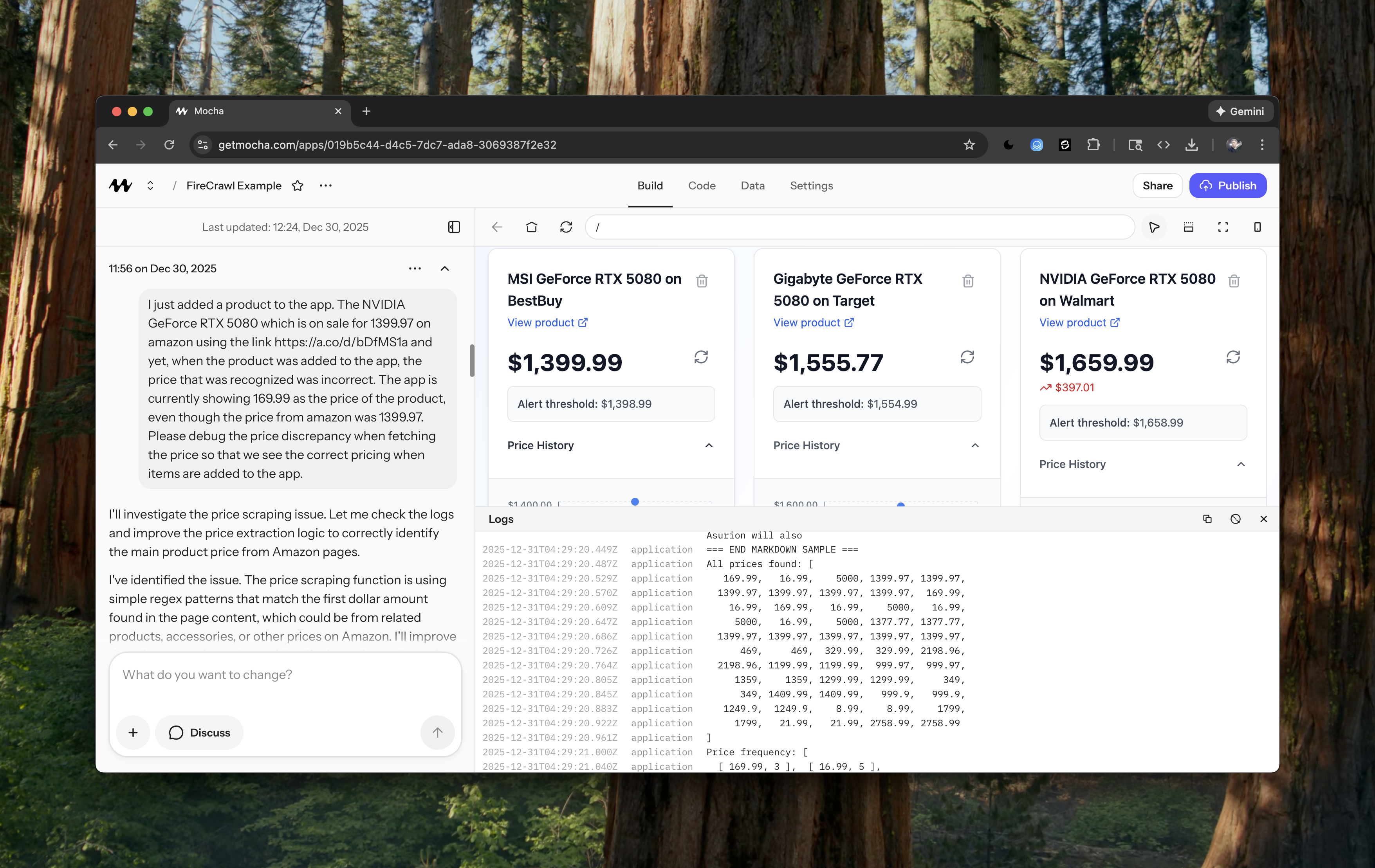
Wait until the app is finished building its initial version. This may take several minutes to finish the first loop of implementations. When done, test it out by adding a product and seeing if the app can scrape the price from the product page.

<div className="flex justify-center">
  <img src="https://mintcdn.com/mocha-47857bf6/egI_EACg1Hy7HJqC/images/firecrawl-debug.png?fit=max&auto=format&n=egI_EACg1Hy7HJqC&q=85&s=bfe397d19e58e56ec8b7a48bf374048a" alt="Firecrawl" width="3512" height="2218" data-path="images/firecrawl-debug.png" />
</div>

## Debugging the Data Crawler

You may find that the data you get from the web crawl doesn't match what you expected. This is because the web page is not structured in a way that is easy for the AI to understand. This is the point in the build where you need to debug the data being fetched from the web, and work with the AI to get the data you want.

Make direct and specific descriptions of what you are doing, what you should be seeing, and what you're actually seeing instead. Act as a quality assurance engineer, or a data detective, to help Mocha get to the bottom of the issue.

<Card title="Prompt to the AI">
  I just added a product to the app. The NVIDIA GeForce RTX 5080 which is on
  sale for 1399.97 on amazon using the link [https://a.co/d/bDfMS1a](https://a.co/d/bDfMS1a) and yet, when
  the product was added to the app, the price that was recognized was incorrect.
  The app is currently showing 169.99 as the price of the product, even though
  the price from amazon was 1399.97. Please debug the price discrepancy when
  fetching the price so that we see the correct pricing when items are added to
  the app.
</Card>

In this example, we were seeing the wrong price getting populated into the app, so we asked the agent about it and the AI tries to fix the problem by creating its own solution:

<Card title="AI solution to the problem">
  I've updated the price scraping logic with two improvements:

  1. **Better detection**: Now looks for specific price labels like "Price:", "Product Price:", "Total:", etc. that Amazon and other retailers use
  2. **Fallback strategy**: If no labeled price is found, it takes the highest price on the page (the main product is usually the most expensive item, not accessories or related products)
  3. **Debug logging**: Added console logs to help diagnose future issues
     Debug logging: Added console logs to help diagnose future issues
     Try adding the product again and it should capture the correct \$1399.97 price. The logs will show all prices found and which one was selected.
</Card>

But this solution does not work. After testing it, the price is still incorrect. So I need to debug the problem further.

<Card title="Prompt to the AI">
  The total price it is finding now is actually \$2,198.96 because it is finding
  the "Price:" pattern from the "Total price:" wording present in the
  "Frequently Bought Together" section, which adds up 3 items frequently bought
  together for a total price to display. We need to nail down the amazon price
  scraping feature because amazon is going to be the most common price tracking
  source that gets added to this app. We are able to see the actual price of the
  item in several places on the page, but I need to know what the response from
  Firecrawl looks like so that I can consistently identify the correct price
  from the response. A simple pattern matching might work but we have to make
  sure it is the correct pattern. I do not see anything in the console when I do
  a refresh of the price, which is what I'm using to see the updated price of
  the item that I added. Maybe we can add a console log to the refresh action so
  that whenever a price is refreshed, we can see what we're dealing with in the
  Firecrawl response.
</Card>

The AI will often try to use the console logs to help debug the problem. If it doesn't do so, you can explicitly request this option to help with the process. Open the logs in the Mocha interface by pressing <kbd>⌘ B</kbd> (or <kbd>Ctrl + B</kbd> on Windows). There you will see the logs that the AI is producing to help you with the fix.

<Card title="Describing our solution to the problem">
  <pre>All prices found: \[
  169.99,   16.99,    5000, 1399.97, 1399.97,
  1399.97, 1399.97, 1399.97, 1399.97,  169.99,
  16.99,  169.99,   16.99,    5000,   16.99,
  5000,   16.99,    5000, 1377.77, 1377.77,
  1399.97, 1399.97, 1399.97, 1399.97, 1399.97,
  469,     469,  329.99,  329.99, 2198.96,
  2198.96, 1199.99, 1199.99,  999.97,  999.97,
  1359,    1359, 1299.99, 1299.99,     349,
  349, 1409.99, 1409.99,   999.9,   999.9,
  1249.9,  1249.9,    8.99,    8.99,    1799,
  1799,   21.99,   21.99, 2758.99, 2758.99
  ]</pre>

  Here's the list of all prices found. Look at how frequently the correct price of 1399.97 appears in there? I think we can use the most frequently appearing price as the price instead of the pattern matching that we're using today, at least that's what it looks like will work for amazon links.
</Card>

After finding the logs that the AI was producing, we were able to find a useful heuristic when identifying the correct price from an Amazon product page. We were able to notice that the correct price of the item was the one that showed up the most frequently in the list of prices found in the scrape response.

After implementing this method for finding the price of the item, we were able to get accurate pricing for items listed on Amazon, Target, and BestBuy. **BUT** not for Walmart.

Walmart had its own price scraping logic.

<Card title="Exception for a Walmart link source">
  <pre>All prices found: \[
  1659.99,      85, 1399.97,
  59,      77, 1399.97,
  1262.98,    1262, 1262.98,
  150, 1262.98,    1262,
  1262.98
  ]</pre>

  Walmart link detected - using first price: \$1659.99

  Extracted price: 1659.99
</Card>

Walmart needed its own price scraping logic, because the most frequently appearing price wasn't the one that was being displayed for the product. Walmart product pages have a unique structure which repeatedly lists related products multiple times throughout the page, but only show the actual price of the product once at the top of the page.

After realizing this feature of the Walmart links, we needed to add a new rule to the price scraping logic that is exclusively going to be applied for Walmart product pages.

<Card title="AI solution to the problem">
  I'll update the price extraction to use different strategies based on the source. Walmart links will use the first price found, while Amazon and others will continue using the frequency-based approach.

  Updated the price extraction logic. Now:

  * **Walmart links use the first price found (\$1,659.99)**
  * **Amazon and other sites use frequency analysis (most common price)**
</Card>

After implementing this new rule, we were able to get accurate pricing for items listed on Walmart, as well as Amazon, Target, and BestBuy. It isn't perfect, and you're going to need to keep debugging for your specific use cases...

But that's the beauty of Mocha. You can keep debugging and iterating on the scraping logic in your app until it is perfect for your specific use case.

## Wrapping up

In this guide, we walked through the process of setting up a Mocha app that has web crawling capabilities for you to scrape data from the web and take actions based on those web crawls.

We also walked through the process of debugging the data crawler and getting the data you want.

We hope this guide has been helpful in getting you started with web scraping in Mocha.

You will be able to see the full source code for the app that we built in this guide by cloning the app in the [Firecrawl Example App](https://pricetracker.mocha.app/) located at [https://pricetracker.mocha.app](https://pricetracker.mocha.app)