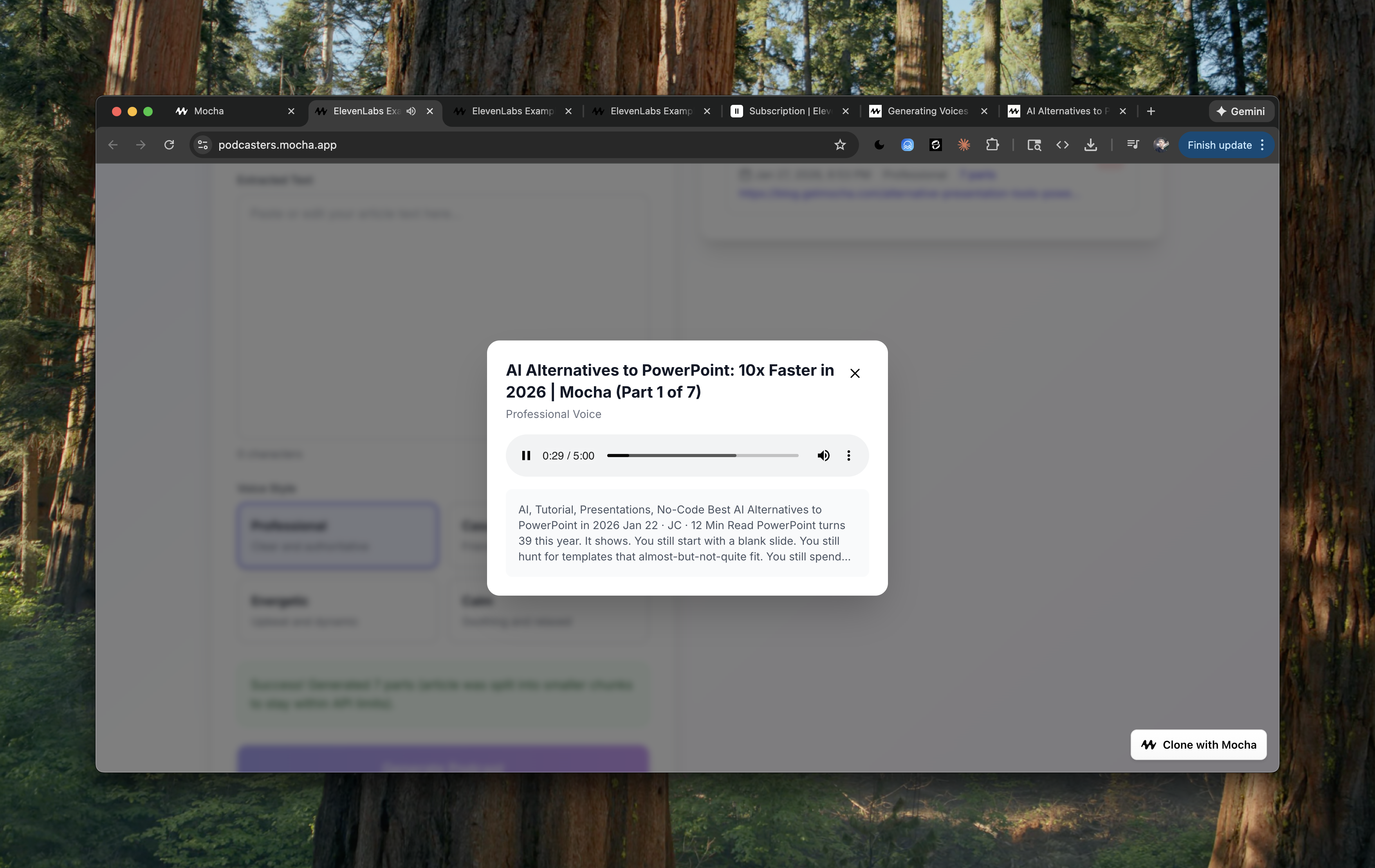

In this how-to guide, we are going to step through the process of setting up a Mocha app that generates podcast-style audio narrations using ElevenLabs text-to-speech models. We’ll build a blog-to-podcast converter that accepts a URL or raw text, lets users choose a voice style, previews the script, generates audio, and provides playback and downloads with a history of past runs.
ElevenLabs

What is ElevenLabs?

ElevenLabs is a speech synthesis platform that offers high-quality, natural-sounding voices with configurable styles. It supports text-to-speech with multiple voices, making it a great fit for podcast narration, voiceovers, and audio content generation. For more information, visit elevenlabs.io.

Starting with the Right Prompt

The initial prompt you give Mocha is crucial for getting your project started on the right track. When building an app that uses voice generation, you need to be specific about:
  • What text sources you accept: URLs, pasted text, or both
  • Voice controls: Styles, tone, and any voice options you want available
  • Audio output: Playback, download format, and storage
  • UX expectations: Progress indicators, previews, and history
  • Technical requirements: The voice API you want to use (ElevenLabs)
Here’s the example prompt used to build the blog-to-podcast converter:
Build a blog-to-podcast converter app.

I want to paste a blog post or article URL (or paste the text directly) and get back a podcast-style audio narration that I can download and publish.

Features needed:
- Input field for URL or raw text
- Option to select different voice styles (professional, casual, energetic, calm)
- Preview the text before generating audio
- Generate the audio narration using ElevenLabs
- Audio player to listen to the result
- Download button for the MP3 file
- History of previously generated podcasts

The UI should be straightforward — paste content, pick a voice, generate, download. Show a progress indicator while the audio is being generated since it might take a moment.
Notice how this prompt includes:
  • A clear description of the app’s purpose and user flow
  • Specific features broken down into bullet points
  • Technical requirements (ElevenLabs)
  • UX expectations (progress indicator, simple flow)
This level of detail helps Mocha understand exactly what you’re building and sets a solid foundation for the rest of the development process.

Setting up the ElevenLabs API Key

During the build, you should see a prompt to add a secret for the ElevenLabs API key. To get your ELEVENLABS_API_KEY key:
  1. Visit elevenlabs.io/app
  2. Sign in or create an account
  3. Open Developers and navigate to the API keys section.
  4. Create a new API key by clicking the Create API key button.
  5. We will be using the Text to Speech API key. It is more secure to restrict the key to only the features we will use.
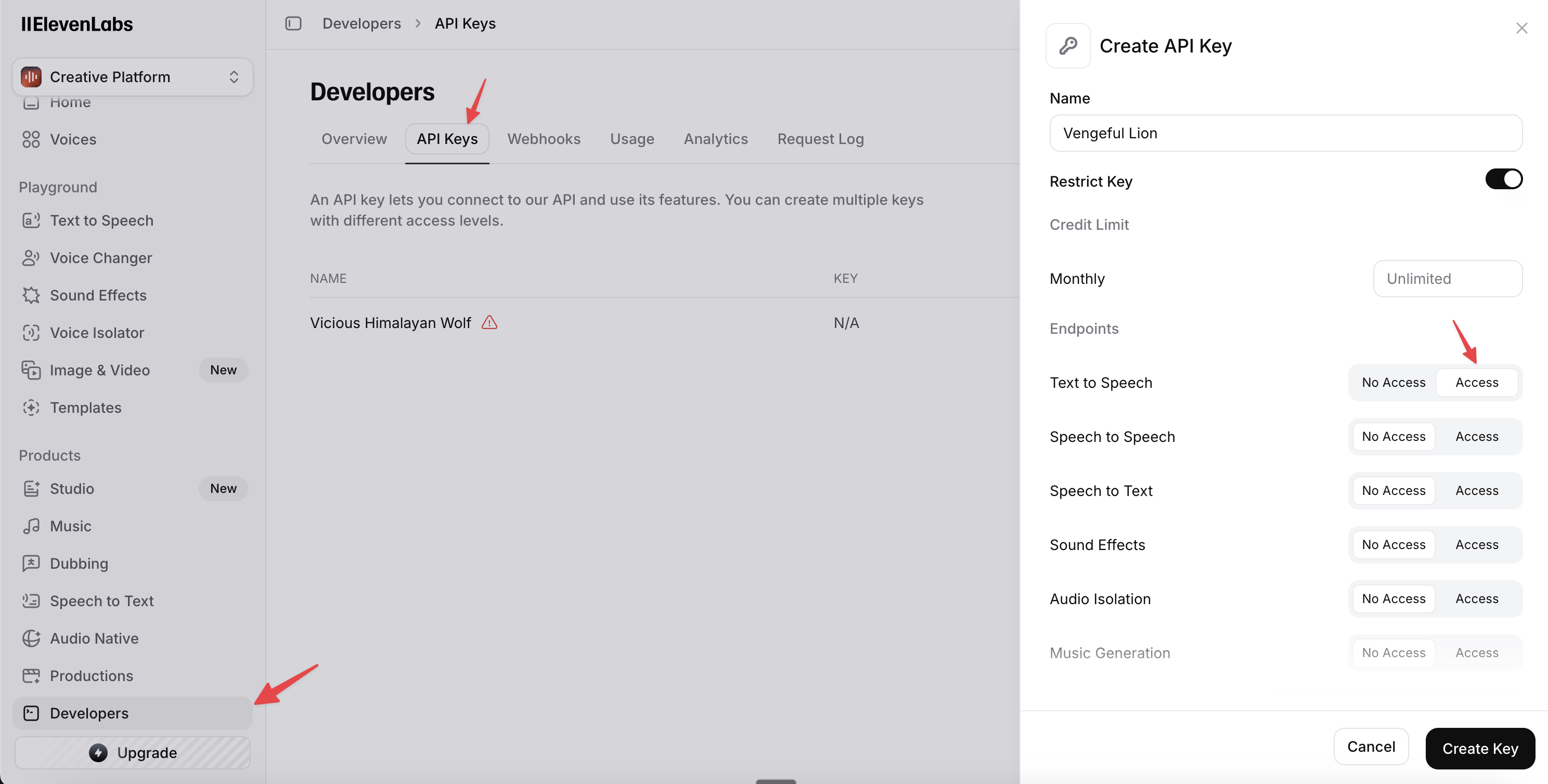
Paste the key into the secret field in your Mocha app.
ElevenLabs API Key

Testing Voice Generation

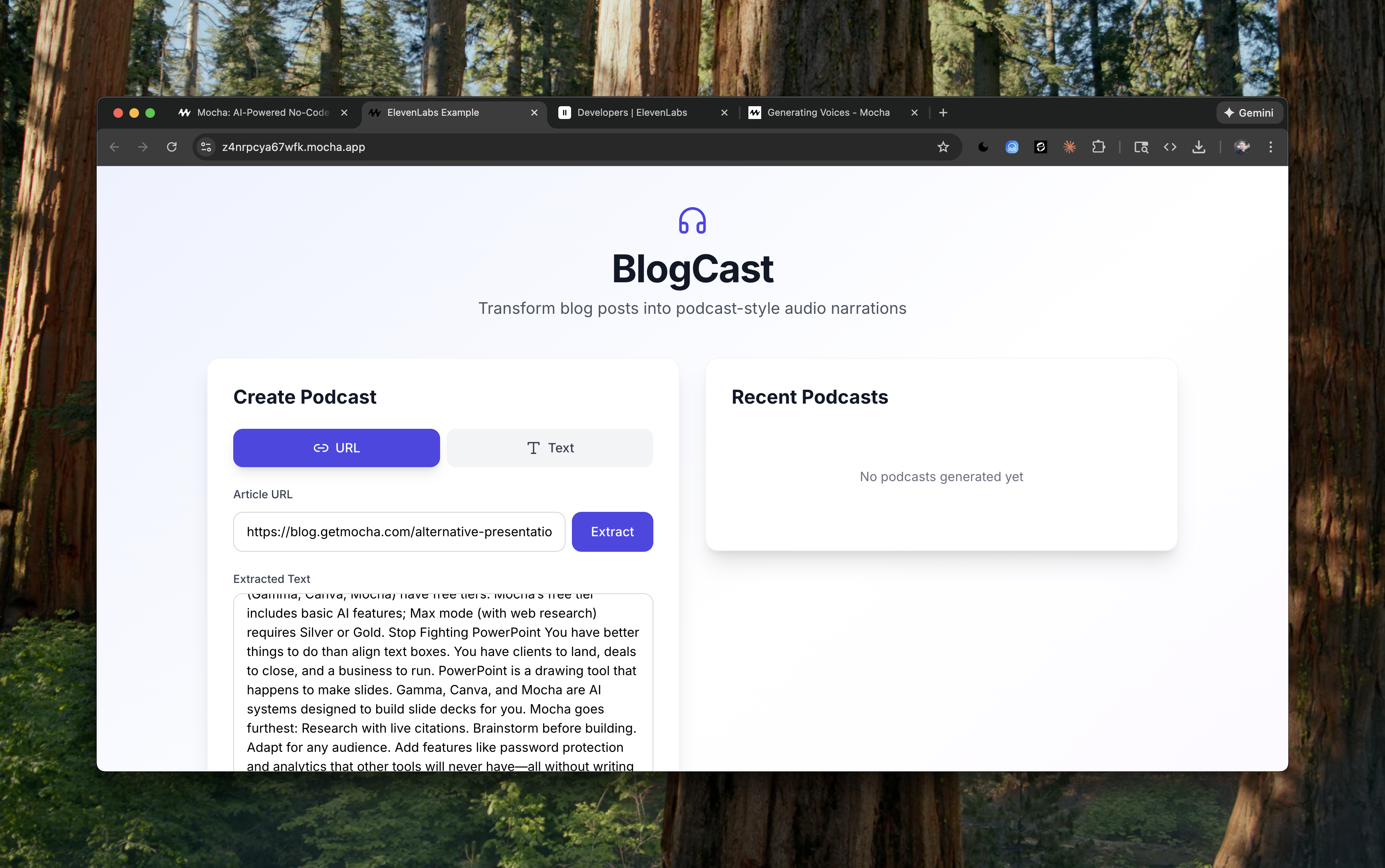
Let’s try the voice generation on a Mocha blog post: Alternative Presentation Tools (PowerPoint).
ElevenLabs Blog Post
Clicking the “Extract” button is working perfectly. All of the blog’s text got extracted from the URL. Now let’s try to generate the podcast audio.
ElevenLabs Voice Generation
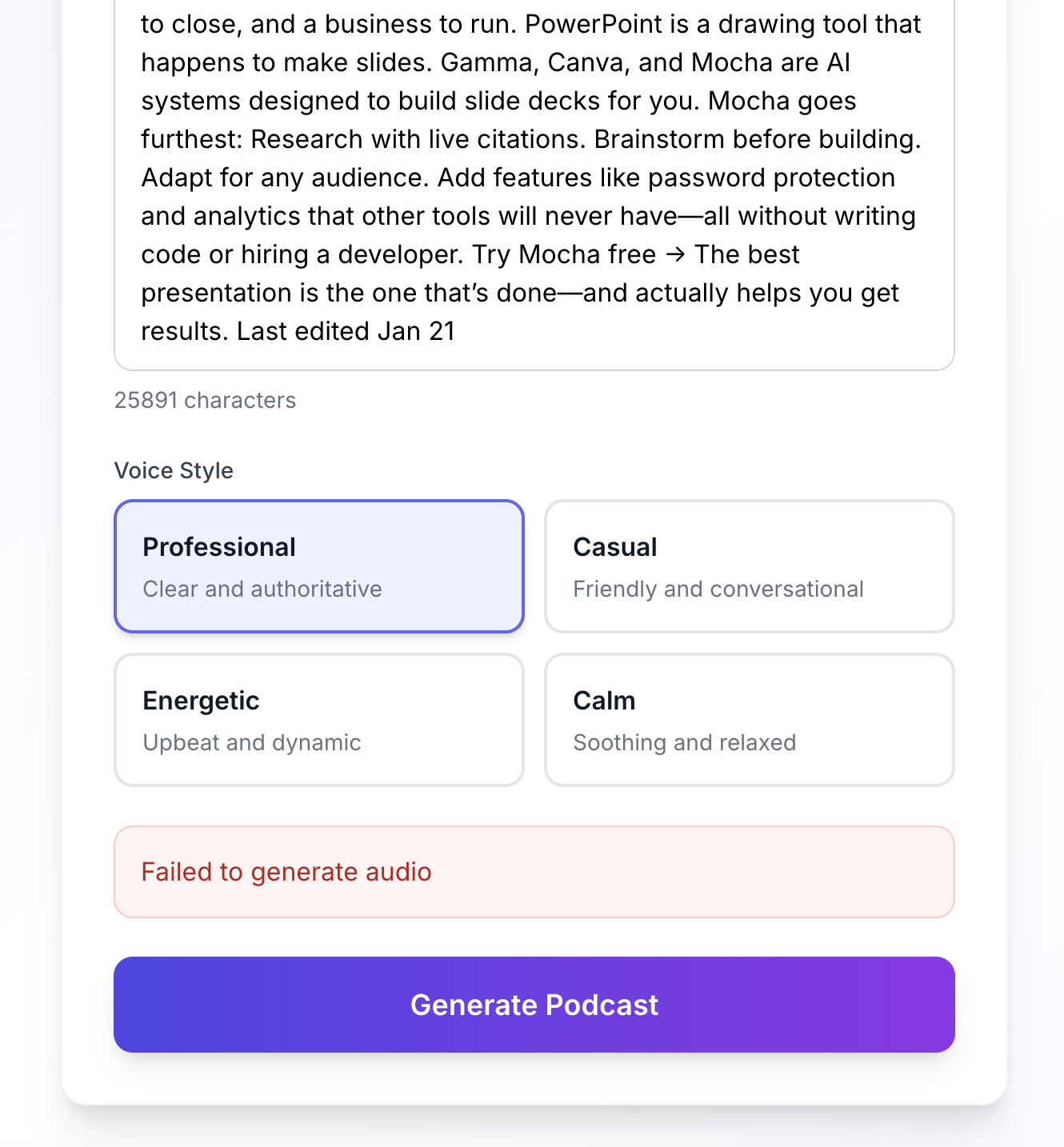
Looks like there is an issue with the app. Let’s try to debug what went wrong.

Debugging Voice Generation Issues

The first thing I’ll do is explain to the AI exactly what I am doing and what I’m seeing. I try to give as much detail as possible. I also open the logs to see what is going on in the console.

Prompt to the AI

I used the URL of the article to create the podcast. Using the blogpost located here: https://blog.getmocha.com/alternative-presentation-tools-powerpoint/I was able to successfully extract the text perfectly, but when I clicked on the generate button with the default “professional” setting, I saw the error: Failed to generate audio and then I looked at the console and the server responded with a 500 from the API.Please check if there is anything wrong with the code and fix any issues you find.
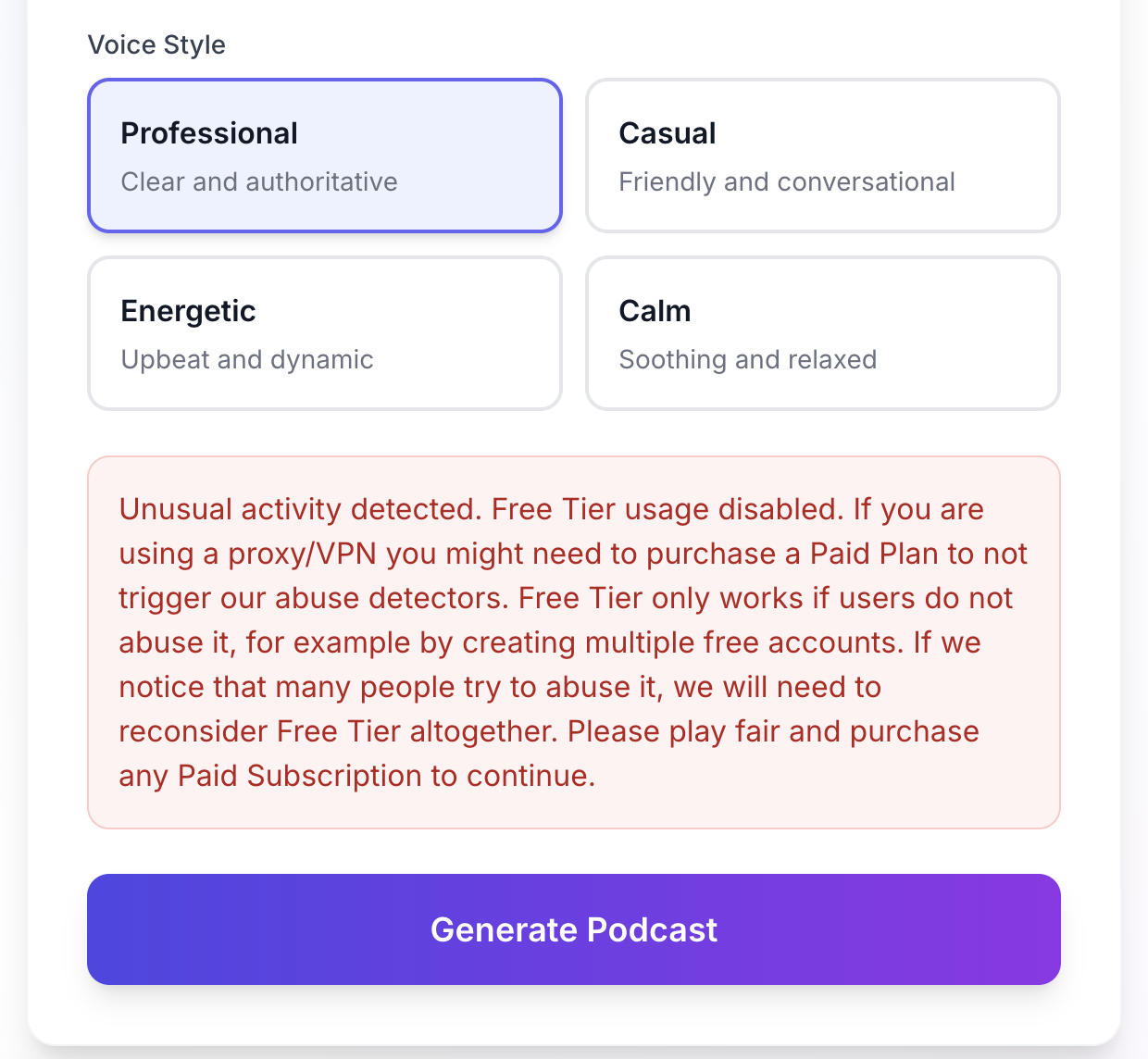
I send this message to Mocha and it starts to figure out what is going on. Unfortunately, during the testing phase of the build, we got flagged by the ElevenLabs API and we are not able to generate audio.
ElevenLabs Warning
This usually happens when trying to generate audio from large amounts of text using the free tier of the ElevenLabs API. What we recommend when this happens is to upgrade to the paid tier if you need to generate audio from large amounts of text. Their starter plan is only $5 a month, and it gets us past this limit. As soon as I upgraded to the paid tier, we were able to generate all of the audio from this 26000+ character blog post successfully.
ElevenLabs Success

Wrapping up

In this guide, we walked through the process of setting up a Mocha app that generates podcast-style audio narrations using ElevenLabs text-to-speech models. We covered:
  • How to craft an effective initial prompt
  • Setting up the ElevenLabs API key
  • Debugging common voice generation issues
We hope this guide has been helpful in getting you started with voice generation in Mocha. You can see the full source code for the app we built in this guide by visiting the Podcasters Example App at https://podcasters.mocha.app